My Account
When you tap any of the social media Sign Up buttons, you’ll be asked permission if GoGetter can use you social media login credentials to sign up for GoGetter. Tap “Continue” and you’ll be taken to your social media site. Once you’re there, tap the “Log In” button. You’ll be taken back to the GoGetter Sign Up page with all the sign up fields automatically populated. After you agree to GoGetter’s Terms and Privacy Policy, you’ll be signed up.
At the GoGetter Sign Up screen, tap the “Sign up with Email” button. You’ll be taken to the Sign Up page where you’ll need to enter your first name, last name, email, mobile phone, password and date of birth. Once you agree to GoGetter’s Terms and Privacy Policy, you’ll be signed up. Please note that you cannot sign up for more than one GoGetter account with the same email.
When you tap any of the social media Sign In buttons, you’ll be asked permission if GoGetter can use you social media login credentials to sign in to GoGetter. Tap “Continue” and you’ll be taken to your social media site. Once there, tap the “Log In” button. You’ll be taken back to the GoGetter and automatically signed in to your GoGetter account.
When you tap the “Sign in with Email” button, you’ll be taken to the Sign In page where you can enter the email and password you created for your GoGetter account. Tap the “Sign In” button and you’ll be signed in to your GoGetter account.
If you forgot your password, tap the “Forgot Password?” button and you’ll be taken to a page where you can enter the email associated with your GoGetter account. Tap “Submit” and we will send you an email with a link to reset your password.
To sign out of your GoGetter account, go to the Main Menu (located in the upper left corner of your home screen in the app). In the Main Menu, tap the “Settings” button. Once you’re in Settings, you will see the “Sign Out” button in red at the bottom. Tap that button to sign out of your GoGetter account.
On the Email Sign In page, tap the “Forgot Password?” button and you’ll be taken to a page where you can enter the email associated with your GoGetter account. Tap “Submit” and we will send you an email with a link to reset your password.
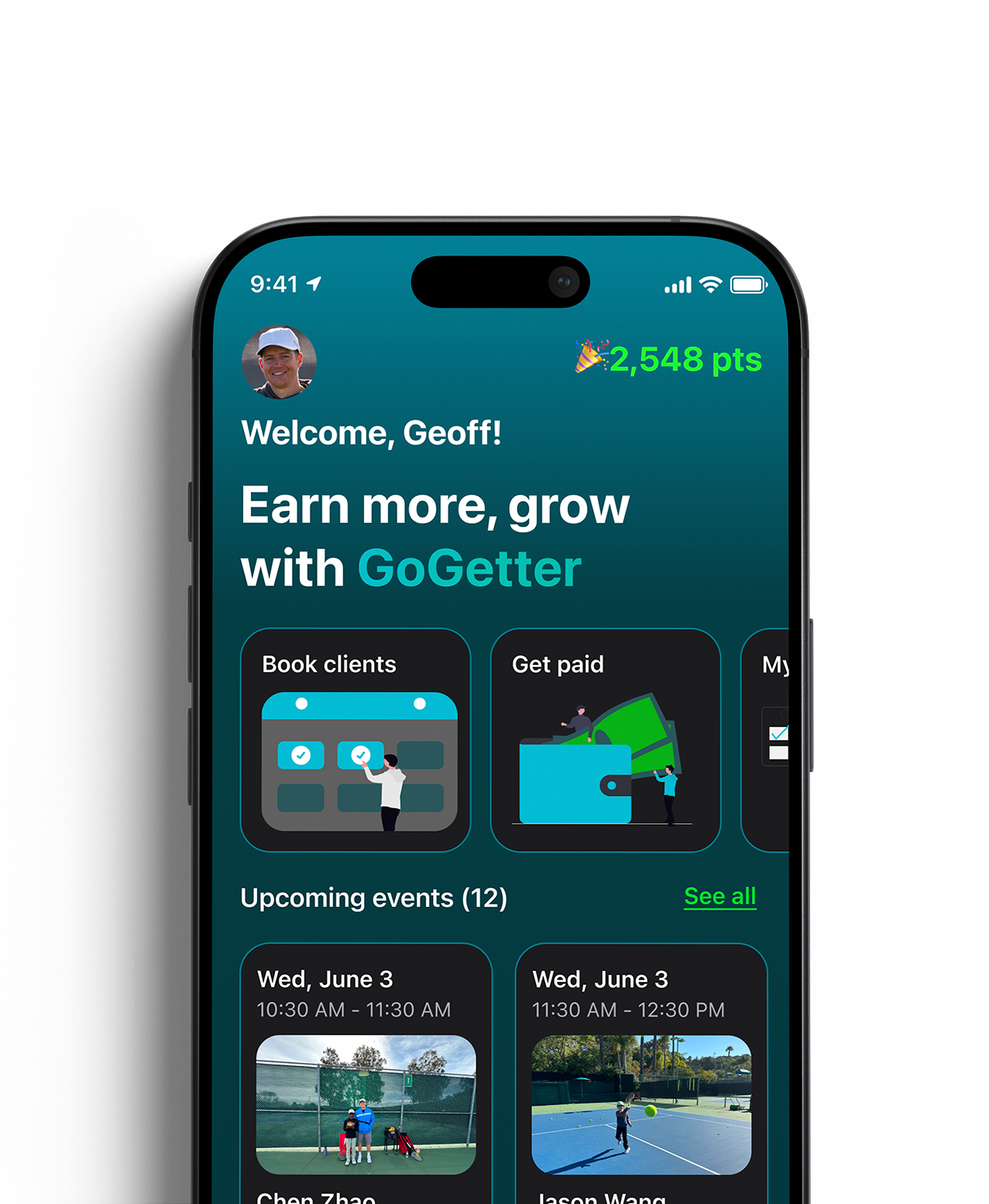
To access your account settings, go to the Main Menu (located in the upper left corner of your home screen in the app). Once there, you will see the “Settings” tab. The Settings tab in the Main Menu can be accessed from most screens in the app.
To edit your GoGetter account info, tap on the Main Menu (located in the upper left corner of your home screen in the app). In the Main Menu, tap the “Settings” tab. Once you’re in Settings, tap the “Account” button. You’ll be able to edit your account info here.